PR IT SUPPORT - MOBILE Phone Issues
MOBILE Megamation Phone Issues
Megamation MOBILE
URL http://m.megamation.com/uog
1. Megamation MOBILE Logout
-
After staff are finished using the MOBILE for the shift, it is necessary to PRESS the LOGOUT menu item to close your session.
Failing to LOGOUT may cause login issues at the start of your next shift.
_________________________________________________________________________________________________
2. MOBILE Megamation - BLANK SCREEN
-
[ISSUE] After logging in to the Mobile application, staff receive a White or Black blank screen.
-
Follow these steps to clear the web browser history.
(See Clear Browser History Files section for more information)
Clear Browser History files
-
Open GOOGLE CHROME web browser
-
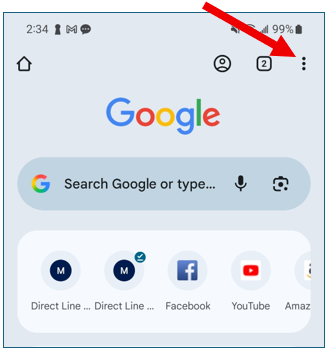
Touch the 3-DOTS in the corner to open the settings menu
-
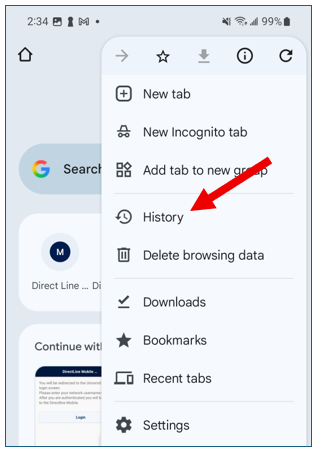
Next, select HISTORY from the settings menu
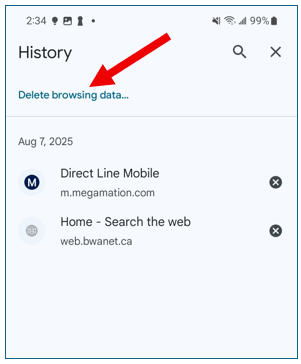
- Next, select the Delete Browsing Data option
-
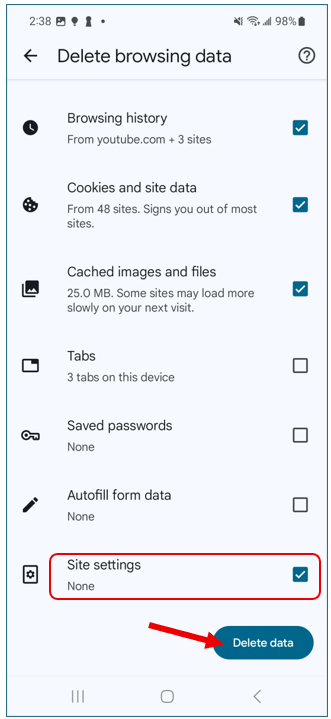
Next select the "Site Settings" checkbox, then press the "Delete Data" button.
This process may take a minute to complete.
-
Once the process is complete, RESTART your Google Chrome browser.
-
Then log in to the Megamation MOBILE app from its ICON on your phone.
_________________________________________________________________________________________________
3. MOBILE Megamation - AUTOFILL with old information
-
[ISSUE] Mobile FIELDS are becoming AUTOFILLED with OLD incorrect information.
-
Follow these steps to stop the AUTOFILL, via the settings in the Android OS.
STOP AUTOFILL
-
Open the GOOGLE CHROME web browser
-
Click on the 3-dots in the right top corner
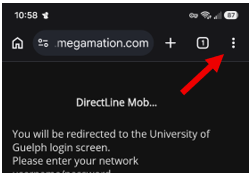
- From the Chrome menu, scroll down
- Click on Settings menu item
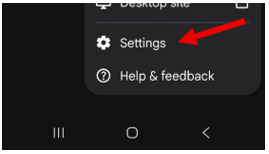
- In the Settings options, scroll down
- Locate the Passwords and Autofill section

- Click on the AutoFill Services item in the list.
- The AutoFill Services screen will be displayed.
- Click on the BLUE highlighted text at the bottom of the screen to Set your preferred service for Autofill using Android Settings.

- In the Android Preferred Service screen within the Android OS settings is displayed.
- Set the AutoFill option to NONE

- Exit the Settings Menu
- Click on the Android OS HOME button to go back to the home screen

- Close and then Restart the Chome Browser. It should no longer capture Autofill data for Megamation Mobile fields.
*If you have questions, please contact the PR IT staff directly.